Image decoding on the web
What is decoding
Image decoding is the process of converting the encoded image back to an uncompressed bitmap which can then be rendered on the screen. This involves the exact reverse of the steps involved in encoding the image. For example, for a JPEG, it involves the following steps:
- The data goes through a Huffman decoding process.
- The result then goes through an Inverse Discrete Cosine Transformation (IDCT) and dequantization process to bring the image back from the frequency space to the colour space.
- Chroma Upsampling is applied.
- Finally, the image is converted from the YCbCr format to RGB.
After the image is decoded, it is stored in an internal cache by the browser. As a user scrolls through the page, the browser decodes the necessary images and starts painting on the screen. The decoded image can take up quite a bit of memory. For example, a simple 300x400 truecolour PNG image (which has RGBA channels) will take 4 * 300 * 400 = 480,000 bytes. Given that modern webpages can easily have 20 or 30 images, this can quickly add up. Here is where browsers have to make the usual tradeoff between storage and computation - storing more images in memory means that the browser doesn’t need to go through the expensive decode operation every time it needs to be painted on the screen, but leads to higher RAM usage.
Factors affecting decoding time
There are different aspects affecting the decoding time of an image. Of course the decoding time is going to depend on the amount of resources available to the browser like the CPU and RAM. This is why image decoding can take even a few hundred ms on resource-constrained mobile devices.
One of the most important factors affecting the decode time is the size of the image. Apart from increased RAM usage, larger images also take longer to decode. This is one of the reasons why serving properly scaled assets to the browser is crucial. Properly scaled assets download faster because of the lesser bytes sent down the wire but also the browser has an easier time decoding and scaling them on device.
The format of the image also affects the image decoding time. Formats like JPEG and PNG have been around for a very long time and there are very efficient decoders available for these formats across a lot of different platform architectures. On the other hand, more modern formats like JPEGXR and WebP do not have decoders which are as efficient. Even if your images encoded as JPEGXR might be smaller than JPEGs and faster to download, if the actual decoding process of JPEGXR takes longer on the client’s device, it may not be a good idea to encode images in that format. This is exactly what Trivago found for their website users!
Measuring image decoding
For Chrome-like browsers, you can see how much time is being spent in image decoding by the browser using the developer tools. To get this information, go to the Performance tab of your developer tools and record a timeline.
Tip: Press CMD+Shift+E (or CTRL+Shift+E) to reload the page and start recording a new timeline as the page starts to load.
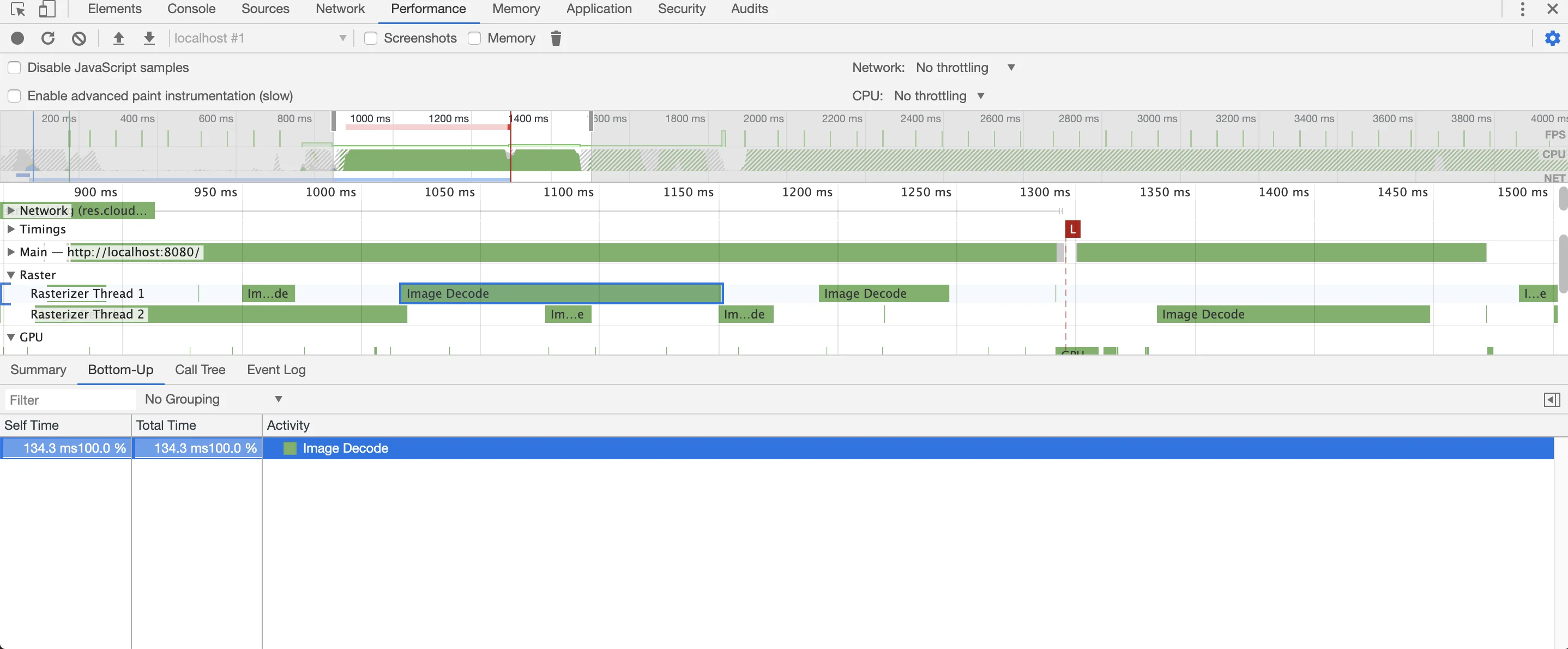
On my Mac, it shows that this corresponding image took 134ms to decode. Click on the event to highlight the DOM node containing the image corresponding to this decode event. You can also enable CPU throttling to emulate how much time an image decode would take in slower devices.
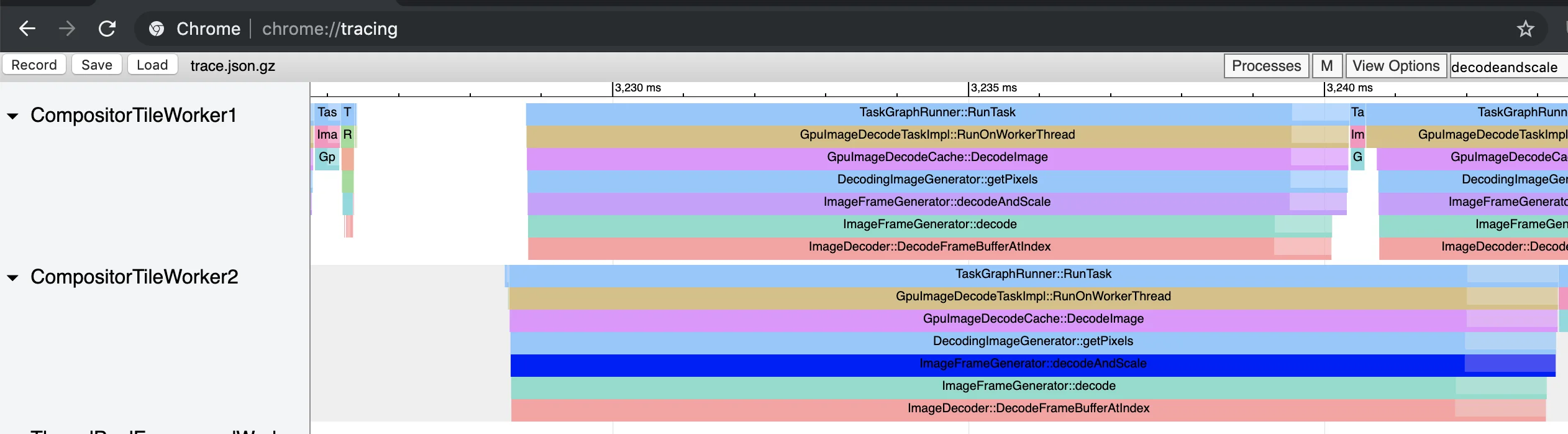
You can also get much more detailed information from the chrome://tracing page. Make sure you select the Rendering category when recording a new trace. The task corresponding to image decoding is decodeAndScale which should have the image decode timing information.
Asynchronous decoding using the decoding attribute
Usually the decoding of images takes place in the main thread or in a raster thread (at least on Chrome). If the image decode takes long, the rest of the tasks in the rasterisation thread gets delayed. Painting other items on the screen like text would get pushed back and would lead to jank since the browser is not able to paint at 60fps. If the image decode happens asynchronously, the rasterisation or the main thread is kept free for other tasks.
There is a new attribute to the image tag which lets you have more of a say in how the decoding process in browsers is carried out.
<!-- Suggest to the browser that the decoding can be deferred -->
<img decoding="async" src="cat.png" >

<!-- Suggest to the browser that the decoding should not be deferred -->
<img decoding="sync" src="cat.png">

<!-- Let the browser figure it out -->
<img decoding="auto" src="cat.png">
<img src="cat.png">
By setting the decoding attribute to async, you are suggesting that the decoding of the image can be deferred. By setting it to auto or omitting the attribute, you are letting the browser decide fully on when the decoding should be carried out.
Note that this attribute acts as a hint only to the browser and it may still carry out what it thinks is best for the user based on other factors.
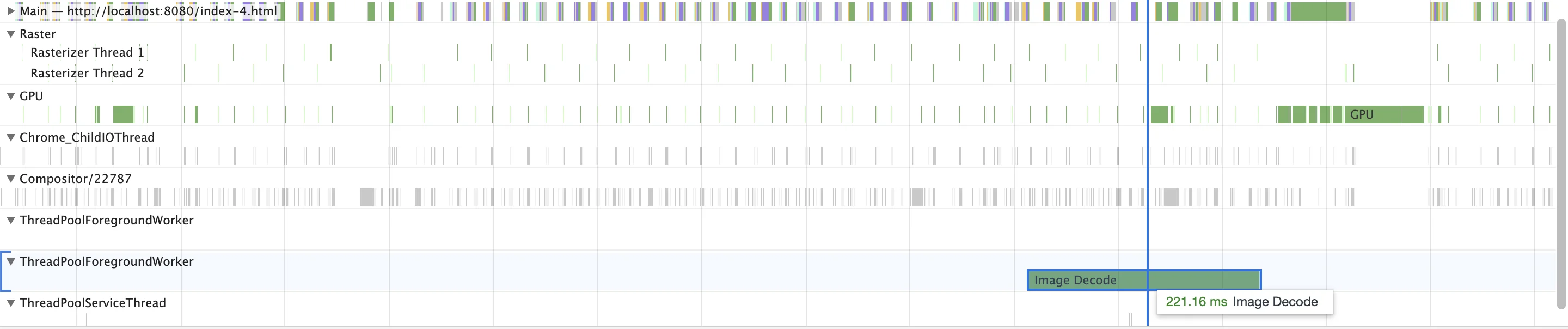
After setting the async attribute, the timeline looks much better! The raster thread blocks much less. The images are now being decoded in a separate thread.
Predecoding via .decode()
Chrome image tags have a new function called decode which lets you asynchronously decode an image tag and returns a Promise which resolves when the decoding is done.
const img = new Image();
img.src = "cat.png";
img.decode().then(() => {
  // image fully decoded and can be safely rendered on the screen
  const orig = document.getElementById("orig");
  orig.parentElement.replaceChild(img, orig);
});
This API prevents page flickering since the decode is fully complete before the image is rendered on the screen.